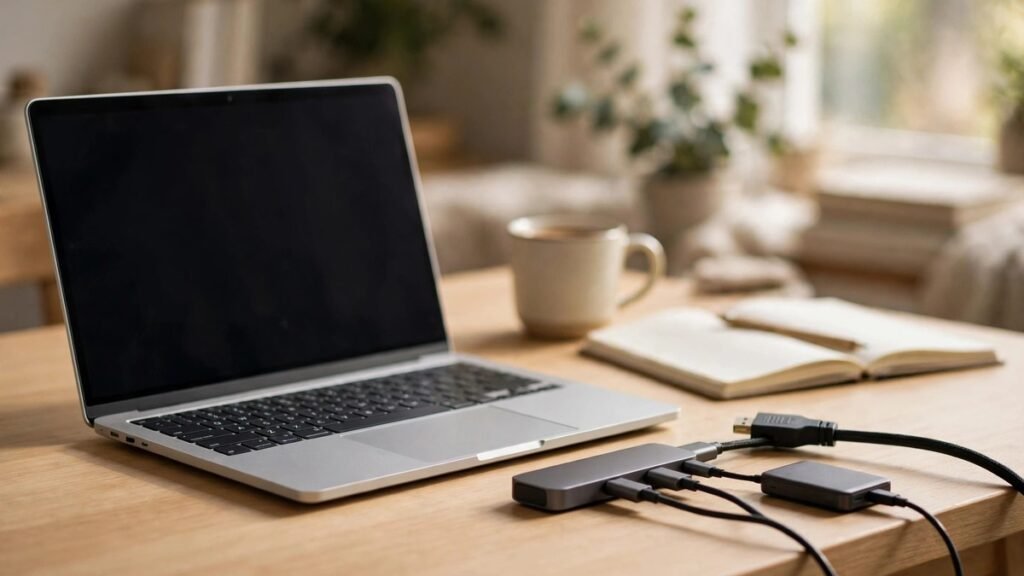
Modern laptops keep getting thinner, and the ports keep disappearing with them. Plenty of new machines ship with just one or two USB-C ports and nothing else — no USB-A for your old flash drive, no HDMI for the TV, no card slot for your camera. A USB-C hub fixes that in one small box: plug it into a single port and you get your missing connections back. The catch is that not all hubs are equal. Buy the wrong one and your monitor flickers, your laptop charges slowly, or the whole thing stops working after a month. Here is how to pick one that actually fits your laptop and your desk.
Start with what you plug in, not with the hub
Before shopping, count what you connect in a normal week: mouse receiver, keyboard, monitor, phone cable, flash drive, camera card, ethernet at the office. Most people land on four to seven items, and that list tells you exactly which ports the hub needs — and which ones you would be paying for and never using. A hub with two HDMI outputs sounds impressive, but if you only use one monitor, that second port is dead weight. Skip a port you do use, like the SD slot if you shoot photos, and you end up buying a second adapter anyway.
Check your laptop first too. A MacBook Air, a Windows ultrabook, and a gaming laptop all have USB-C ports, but they are not all the same port. Look up your model and confirm the port supports video output and power delivery. If it only handles data, no hub will run a monitor from it.
The ports that actually matter
USB-A ports are the ones most people still need — mouse receiver, older flash drive, printer cable. Two is a sensible minimum; three is comfortable if your desk has a lot of gear.
HDMI is how most people connect a monitor or TV. A single HDMI port that supports 4K at 60Hz covers nearly every home setup. Cheaper hubs often top out at 4K at 30Hz, which is fine for spreadsheets and video but feels laggy when you scroll. If you edit video or game on an external screen, 60Hz is worth paying for.
An SD card slot and a microSD slot matter if you use a camera, a drone, or a Nintendo Switch. They are cheap to include, so their absence is usually a sign the hub cut corners elsewhere too.
Ethernet is the port people forget until they need it. Wi-Fi is fine most of the time, but a wired connection is steadier for video calls and big downloads. If you work from a home office with a router nearby, a gigabit ethernet port is a real upgrade.
Power delivery passthrough — usually labeled USB-C PD — is the port you plug your laptop charger into. Without it, the hub occupies your only charging port and your battery drains while you work. With it, the charger goes into the hub and power flows through to the laptop. This is not optional on a laptop with a single USB-C port.
Power delivery: the number that causes most returns
Here is where most buying mistakes happen. A hub might advertise 100W power delivery, but that is the total the hub can pass through, not what reaches your laptop. The hub itself takes a cut — often 10 to 15 watts — so a 100W charger might deliver only 85W to the machine.
That matters because laptops have different appetites. A thin ultrabook that ships with a 45W or 65W charger will be happy with almost any hub. A 14-inch or 16-inch performance laptop that ships with a 90W or 100W charger will charge slowly — or not at all under heavy use — if the hub cannot pass enough power through. Match the hub’s passthrough wattage to your laptop’s charger, with a little headroom. If your charger is 65W, look for a hub that passes at least 85W or 100W.
One more warning: use the charger that came with your laptop, or a reputable replacement with the same wattage. A weak phone charger plugged into a hub will not keep a laptop alive, no matter what the hub promises.
Who a USB-C hub is NOT for
A hub is a travel and desk companion, not a full docking station. If your laptop never leaves a desk with two monitors, a wired keyboard, speakers, and an ethernet cable, a powered docking station is the better buy. It costs more, but it charges the laptop properly, drives both screens, and stays put.
It is also a poor buy if your laptop still has all the ports you need. Some thicker Windows laptops already have USB-A, HDMI, and a card reader built in. Adding a hub to that machine just adds clutter.
And skip the cheapest no-name hubs. A hub sits between your laptop and everything connected to it, including its power supply. A badly made one can drop your monitor mid-call or corrupt a file transfer. Stick to brands with a track record and a real warranty — the price difference is usually a few dollars.
Common mistakes to avoid
The first is buying on port count alone. Ten ports means nothing if half of them are slow or the power passthrough is weak. Read the specs for the ports you will actually use.
The second is daisy-chaining hubs — plugging one hub into another to get more ports. It usually works for a mouse and keyboard, but power and video get unreliable fast. If you need more ports than one hub offers, buy a bigger hub.
The third is using a cheap cable. The short cable built into most hubs is fine, but if you extend it with a random USB-C cable from a drawer, you may lose video or charging. Cables have their own speed and power ratings, and a cable meant for phone charging often cannot carry a 4K video signal.
Finally, do not forget the travel case. A hub is small enough to live in a laptop bag, and it earns its keep on trips — hotel TVs, conference room projectors, a borrowed monitor at a relative’s house. Our portable charger guide pairs well with this: a power bank and a hub together cover most travel setups — and our holiday travel tech kit covers the rest of the bag.
FAQ
Will any USB-C hub work with my laptop?
Almost any hub will work for basic USB devices, but video output and charging need a USB-C port that supports those features. Check your laptop model’s specs for DisplayPort Alt Mode and Power Delivery before buying.
Do I need a Thunderbolt hub?
Only if you need very high speeds or two 4K monitors. For most people, a regular USB-C hub is cheaper and does everything they need.
Can a hub charge my laptop?
Yes, if it has USB-C power delivery passthrough and you plug your laptop charger into it. The hub passes most of the charger’s wattage through, minus a small amount it uses itself.
Why does my monitor flicker when connected through a hub?
Usually a cable or bandwidth issue — a cheap HDMI cable, a hub that only supports 4K at 30Hz, or two displays sharing one connection. Try a better cable first, then check the hub’s display specs.
Is a hub safe to leave plugged in all day?
A well-made hub from a reputable brand is fine left plugged in. Cheap unbranded hubs can run hot, so if yours feels warm to the touch after an hour, replace it.
🛒 Shop This Guide – Buy on Amazon
As an Amazon Associate, Trend Trolley earns from qualifying purchases. The products below are ones we recommend in this guide — prices and availability can change, so check the current price on Amazon before you order. Buying through these links supports Trend Trolley at no extra cost to you.
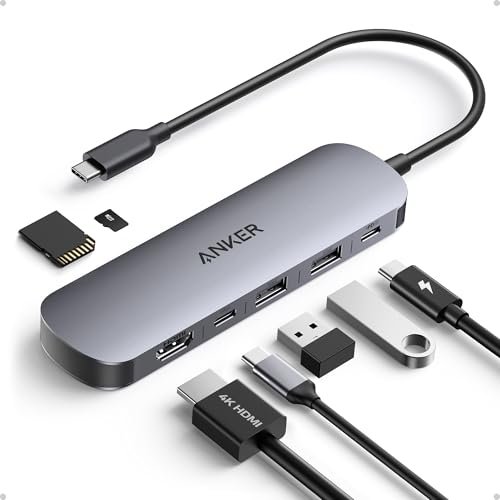
Anker USB C Hub 7-in-1 (A83D2) — a solid all-round hub with HDMI, USB-A ports, SD/microSD slots and power delivery passthrough
Buy on Amazon
SanDisk Ultra 64GB microSDXC Memory Card — handy extra storage for a camera, drone or Switch, and it slots straight into the hub’s card reader
Buy on Amazon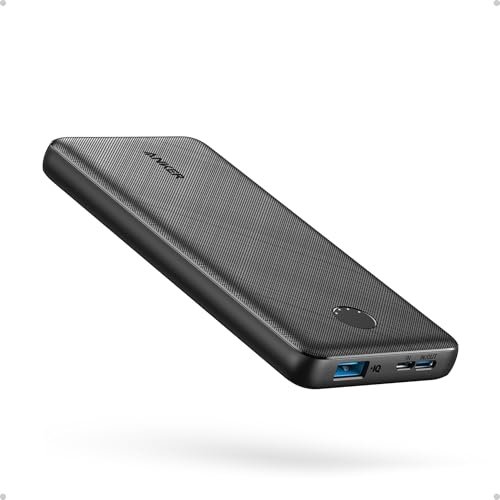
Anker PowerCore 10K Power Bank (A1229) — keeps your phone and small gear charged on the road while the hub handles the laptop
Buy on Amazon
As an Amazon Associate, Trend Trolley earns from qualifying purchases.